
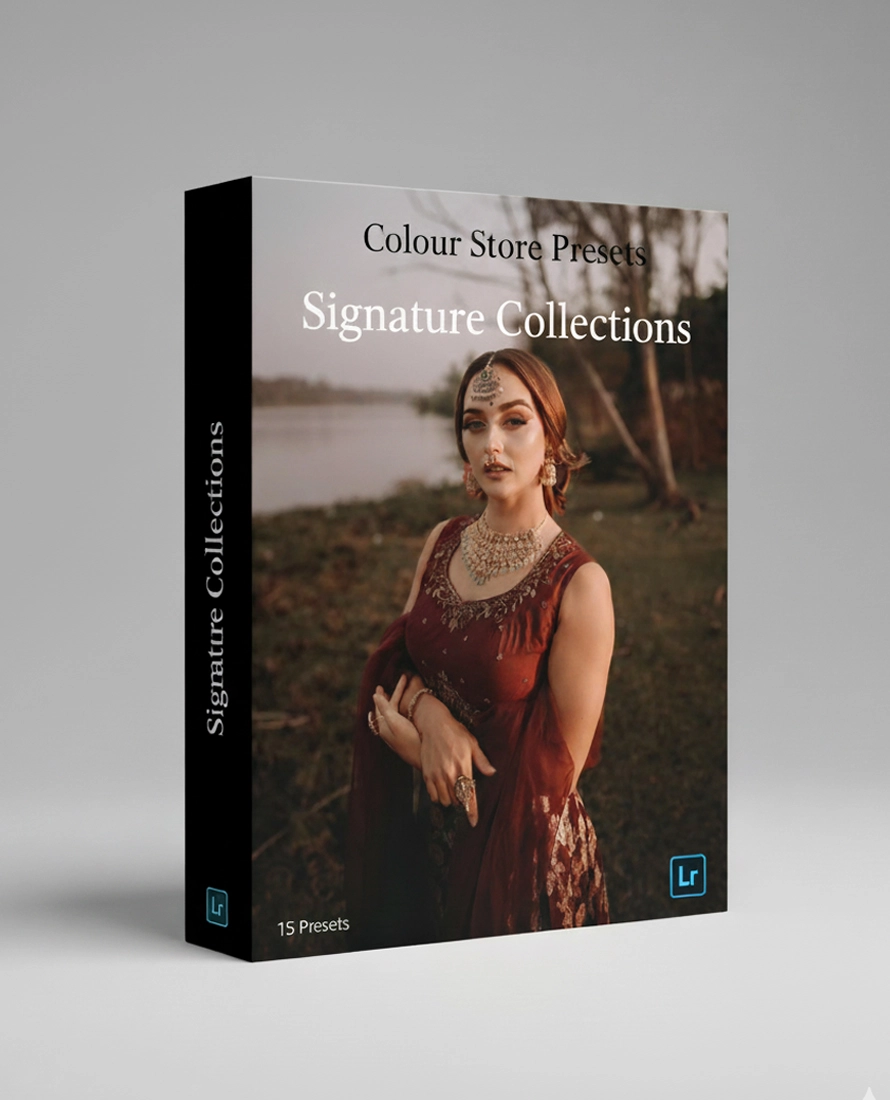
Signature Collections– Lightroom Presets
Every image you see on our Instagram page and website was crafted using these 34 Signature Presets.
This is my personal colour language — the exact tones, the exact workflow, the exact magic behind every Colour Store photo.
Designed specially for JPEG files, this pack delivers perfect colours straight out of the camera — no complications, no extra steps.
From weddings to portraits, indoors to outdoors, this Signature Collection is the core of everything I create.
If you’ve ever loved the colours of Colour Store… this is the pack behind it.
₹8,000.00 Original price was: ₹8,000.00.₹6,500.00Current price is: ₹6,500.00.
Need pricing for multiple editors, studios, or teams?Reach out on +91 96057 61589 for a custom quote that fits your workflow and budget retouching with precision.
The minimal requirements to run the presets are Adobe Lightroom Classic 11 or higher and Adobe Photoshop Camera Raw 14 or higher. We do suggest using our presets with the latest versions. Please note: These presets are only available as .XMP-files.
For Lightroom Classic (Desktop): Open Lightroom Classic and go to the Develop module. On the left panel, look for the Presets panel. Right-click on the Presets panel and select Import Presets. Navigate to the location where your presets are saved, select them, and click Import. Your imported presets will now be available in the Presets panel under the User Presets group or another specified group if they were organized as such. For Adobe Camera Raw (ACR): Open a RAW File in ACR: Right-click on a RAW file and select “Open in Camera Raw” to launch ACR. Access the Presets Panel: Once ACR is open, look for the Presets icon on the right-hand side of the screen. It typically looks like three sliders (shadows, midtones, highlights) – this will open the Presets panel. Import Presets: In the Presets panel, click on the three dots menu icon at the top right corner and select “Import Profiles & Presets.” Select and Import Your Presets: Navigate to where your presets are saved. They will either be in .xmp or .lrtemplate format (though .xmp is more common in recent versions). Select the presets you wish to import and click “Import.”